
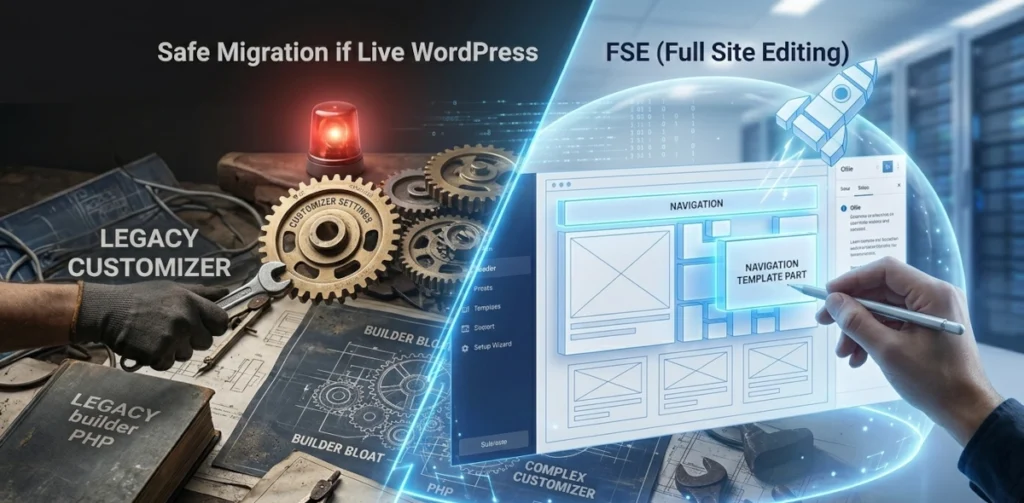
For years, the WordPress Customizer (Appearance > Customize) was the control center for global styles, headers, footers, and sidebars. However, as the ecosystem shifts entirely toward Full Site Editing (FSE), legacy theme architecture is giving way to a more streamlined, block-based infrastructure.
Transitioning a live, revenue-generating website from a traditional theme to a modern block theme can feel daunting. If you pull the wrong lever, layouts break, widget data vanishes, and user experience plummets.
This guide provides a structured, risk-free workflow to migrate your live production environment to the modern Site Editor framework safely.
Step 1: Establish a Sandboxed Staging Environment
The Golden Rule of Migration: Never, under any circumstances, activate a block theme directly on a live production website.
Because traditional themes rely on PHP and the database-driven Customizer, switching to an HTML-based block theme will instantly strip away your header, footer, and sidebar layouts.
- Clone the Site: Create an exact replica of your live site on a staging subdomain or a local development environment.
- Audit Active Plugins: Deactivate any legacy layout plugins, customizer extensions, or outdated widget managers that are incompatible with modern block architecture.
- Freeze Content: Ensure no new blog posts, pages, or major comments are being added during the active migration window to prevent data divergence.
Step 2: Inventory and Map Your Legacy Layout Assets
Before you activate your new block theme, you need to map out exactly how your current site is assembled. Open your staging site in two separate browser tabs: one on the frontend, and one in the backend dashboard.
Document the following elements:
- Navigation Menus: Take note of your primary, secondary, and footer link structures under Appearance > Menus.
- Widget Areas: Copy the exact text, custom HTML, or shortcodes currently living in your sidebars and footers (Appearance > Widgets).
- Global Brand Styling: Jot down your exact hex color codes, typography families, and spacing choices from your old customizer settings.
Step 3: Activate the Block Theme and Enter the Site Editor
With your structural inventory complete, navigate to Appearance > Themes on your staging site and activate your chosen FSE block framework.
Once activated, the traditional Customizer and Widgets menus will disappear, replaced by a single option: Appearance > Editor. Click this to launch the global Site Editor interface.
Step 4: Rebuild the Global Infrastructure (Header & Footer)
When you first open the Site Editor, your homepage will likely look bare. This is completely normal; we simply need to assign your inventoried assets to native block structures.
Reconstructing the Header:
- Navigate to Patterns > Template Parts > Header inside the editor.
- Insert a Navigation Block. Instead of rewriting your links, select your old legacy menu from the block settings toolbar to instantly populate your existing navigation structure.
- Use a Site Logo Block and a Site Title Block to position your brand assets natively.
Reconstructing the Footer:
- Navigate to Patterns > Template Parts > Footer.
- Use a Columns Block to mimic your old widget footprint (e.g., a 3-column or 4-column split).
- Manually copy your old widget content into native blocks: use the Paragraph Block for text, the Navigation Block for footer links, and the Legacy Widget Block only if you have an older plugin shortcode that lacks a block equivalent.
Step 5: Configure the Global Style Archetype
Instead of writing custom CSS or hunting through hidden theme setting tabs, global aesthetics are now handled in the Styles engine (the circular icon in the top right corner of the Site Editor).
- Colors: Open the color palette manager and input your brand’s exact hex codes. Assign these to global semantic roles (Text, Background, Link, Primary Primary Buttons).
- Typography: Set your global font families, line-heights, and scale rules for body text and headers ($H1$ through $H6$).
- Layout Elements: Define your default content width (e.g., 800px for readable articles) and wide-align width (e.g., 1200px for landing page sections) to ensure consistent spacing across all pages.
Step 6: Test, Validate, and Push to Production
Before merging your sandboxed staging environment back into your live domain, execute a strict quality assurance sweep:
- Responsive Breakpoints: Test the new layout on mobile devices, tablets, and desktop displays. Pay close attention to how your new native navigation menu collapses into a mobile toggle burger.
- Crawl the URL Map: Click through critical pages, category archives, and search result views to confirm that core layout templates load identically across the entire site directory.
- Speed Benchmark: Run the staging site through a performance analyzer. You should notice a significant drop in DOM depth and a boost in Core Web Vitals performance compared to your old legacy framework.
Once everything aligns perfectly, back up your live site completely, pull your staging database and templates to production during a low-traffic window, and clear your server-side caching systems. Your modern, future-proof FSE site is officially live.