
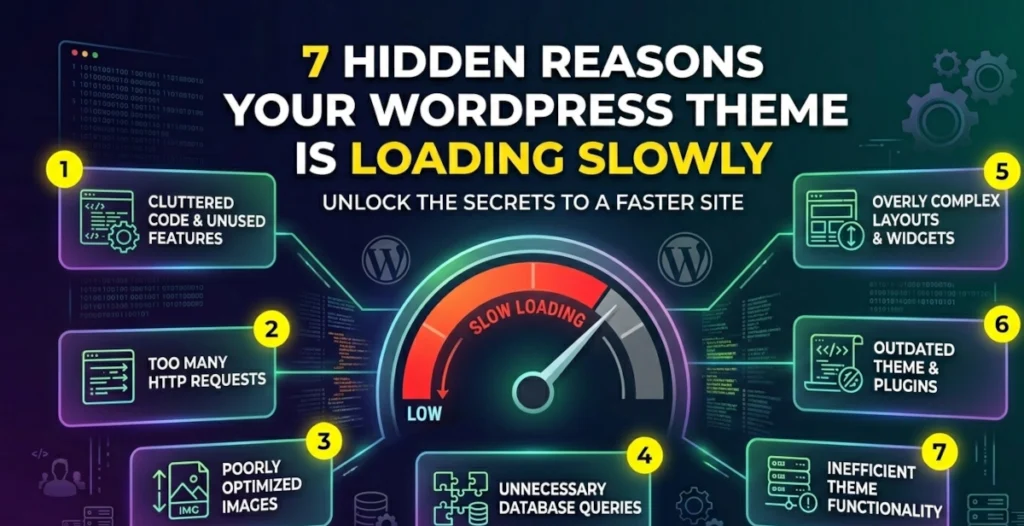
If you have already compressed your graphics into WebP format, configured a caching layer, and stripped out heavy third-party plugins, yet your desktop and mobile speed scores still stall in the orange zone, the problem sits squarely inside your WordPress theme directory.
Standard performance audits often overlook structural execution flaws. Here are 7 hidden, theme-level engineering bottlenecks that throttle page speed, along with the specific code fixes required to resolve them.
1. Dynamic Asset Bloat (The Global Script Trap)
Many commercial themes queue every visual feature asset – such as masonry portfolios, sliders, and review carousels – globally across your entire template hierarchy. If your theme loads a layout script on a plain text privacy policy page, it introduces critical main-thread blocking.
- The Fix: Isolate asset delivery by wrapping your register calls inside conditional hooks within your configuration file. Only enqueue heavy script packages on targeted custom post types or specific template views.
2. Excessive Layout Recalculations (DOM Nesting Depth)
Page builders and complex themes frequently generate highly redundant nested HTML wrapper elements (div tags wrapping div tags). Deep DOM trees trigger expensive browser layout recalculations every time an element updates, directly harming your Interaction to Next Paint (INP) metric.
- The Fix: Maintain a strict structural ceiling. Keep your total DOM tree depth below 32 nested elements, and utilize native flexbox or grid layouts rather than generating nested visual wrapper blocks.
3. Critical Render-Blocking CSS
Themes typically aggregate all styling rules into a singular, comprehensive master stylesheet loaded in the document header. Browsers halt interface rendering entirely until this primary styling file downloads completely, extending the visual blank-screen duration for mobile visitors.
- The Fix: Split your template assets. Extract the specific inline styles required to render the initial visual viewport (the above-the-fold content) and inject them directly into the document header. Defer the remaining master stylesheet to load asynchronously in the document footer.
4. Unoptimized Font Stack Management
Relying on external web font configurations often introduces render-blocking network requests. When a theme layout triggers multiple structural weight variants without explicitly configuring display parameters, browsers conceal text completely until the font file arrives, causing visible layout shifts.
- The Fix: Host your required typography files directly on your local web server. Implement the font-display: swap; directive inside your styling rules to ensure the system immediately renders a readable fallback typeface while the custom font finishes downloading.
5. Missing Direct Image Dimensions
If a theme file displays structural graphics, logos, or author thumbnails via an image path without explicitly declaring numerical width and height properties in the markup, the browser cannot allocate the correct layout space ahead of time. This absence causes major Cumulative Layout Shift (CLS) penalties as elements jump around during page load.
- The Fix: Ensure every template image file contains explicit inline structural attributes:
<img src="logo.webp" width="180" height="60" alt="Brand Logo">6. Uncached Template Database Queries
Themes often run custom database queries directly inside layout templates to populate features like “Related Content” or “Recent Updates” boxes. Without caching, these queries force a live database trip on every single page view, driving up your server response time.
- The Fix: Wrap your template database requests inside the WordPress Transients API. Cache the query results for a set duration (e.g., 12 hours) to serve the HTML layout instantly without repeating identical database operations.
7. Global Admin Heartbeat Execution
Many premium themes leave the native WordPress Heartbeat API running at full capacity on the frontend of your site to power real-time notifications or synchronized options. This continuous polling consumes valuable server CPU cycles on every open browser tab.
- The Fix: Use your configuration file to completely disable or throttle the Heartbeat API script on frontend page layouts, limiting its background execution strictly to the backend dashboard where editing actually takes place.